
 Account Control
Check bans and stats with Stat Checker
Join a server for a second with many accounts at once and read each one’s scoreboard, kick message and ban status.
What Stat Checker does
Stat Checker joins a Java server with the accounts you pick, stays for about a second each, and shows you what every account saw: the sidebar scoreboard in the server’s own colours, or the full kick message when the server refused it. Each account gets its own card, every card fills in on its own as the checks come back, and the status line above them sums up how many were OK, banned, kicked or failed. Turn on the Command Checker and each card also shows what one command, such as /stats, opened for that account, so a single run reads money, kills and playtime for a whole account list without any of them staying online. A kick that mentions a ban, a suspension, a blacklist or the word “blocked” gets a BANNED tag next to the account name, so a list of 100 accounts tells you in a few seconds which ones can still play there.
Each account connects through one of over 75,000,000 residential proxies, a fresh home IP per account, so the server never sees your Console Client proxies. The check is a separate connection from the account’s normal one: accounts can stay online on their own server while you check another. It is not visible on the Overview tab and it never touches Auto Reconnect.
Run a check
Open Stat Checker
Pick Stat Checker in the sidebar, above Purchase Accounts.
Enter the server
Type the server host, the same address you would put in your Minecraft client. The preview pings it and shows the icon, MOTD and player count. Leave the port at 25565 unless the server uses another one, and pick the Java version the server expects, the same one your accounts use to join it. Host, port and version are remembered for next time.
Pick the accounts
Open the Accounts dropdown. Search, use All and None, tick accounts one by one, or type a range such as
1-10in the range box and press Select. Only Java accounts are listed. One check takes up to 250 accounts: the first 250 are ticked when the list opens, and once 250 are ticked the rest are greyed out until you untick one.Check stats
Press Check stats. One card per account appears at once and fills in as the checks come back. Stat Checker runs one customer at a time and starts one account per second, each on its own residential IP, so the server never sees a burst of joins; 60 accounts take about a minute and 250 about four and a half minutes. If someone else is being checked first you see your place in the queue and an estimated time, and your check starts by itself when theirs finishes. Reloading the page brings a running check back.
Run a command too
Tick Command Checker to make every account run one command after it joins, /stats by default, and show the answer next to its scoreboard. Type the command, then pick what it does: Opens a server dialog or Opens a chest GUI. Whatever the server actually opens is captured. Server dialogs exist on Java 1.21.6 and newer, so on an older version that option is greyed out and the chest GUI option is selected for you. A chest menu shows its items with icon, name and lore (filler items that repeat, like coloured glass, are left out), and a dialog shows its text lines and button labels. Commands that only answer in chat are not supported: other players are talking the moment an account joins, so a chat reply cannot be told apart from them.
The account stays on the server until the menu or dialog opens, usually one or two seconds longer than a plain check. If nothing has opened after a second and a half the command is sent once more, and after four seconds the card says no reply came. On DonutSMP, /stats opens a dialog with Money, Kills, Deaths and Playtime, so a check with the command on reads an account’s money without a scoreboard at all.
An example run
The screenshot below is a finished check of two accounts on DonutSMP with the Command Checker on. The server preview at the top shows the DonutSMP icon and MOTD, the host is donutsmp.net on port 25565 with Java 1.21.4, and the Accounts dropdown reads 2 accounts selected. The command is /stats with Opens a chest GUI chosen, and Opens a server dialog is greyed out because 1.21.4 is older than 1.21.6. Next to the Check stats button the status reads Done: 2 ok, and under it the quota line says 1,980 checks remaining this month, so the run used 2 of a Tier 3 allowance of 2,000.
Three totals sit above the results. The first, $130M, comes from the scoreboard money line and is marked Scoreboard, 2 of 2 checked, so it is the sum of both accounts’ money and also shows on the Scoreboard tab for DonutSMP. The other two, Shards 3700 and Blocks Broken 121, are marked Command: they were added from the /stats reply with the + Add Total button and add up the matching item from every account’s chest GUI. Below the totals, one card per account carries an OK badge. The left half of each card is the live sidebar exactly as DonutSMP draws it, with the money, shards, kills, deaths and playtime lines. The right half is the chest GUI that /stats opened, one row per item with its icon, name and value: Money, Shards, Kills, Deaths, Playtime, Blocks Placed, Blocks Broken and Mobs Killed. The repeated glass filler that pads a DonutSMP menu is left out, so only the eight stat items remain. Account names are blurred in this example.
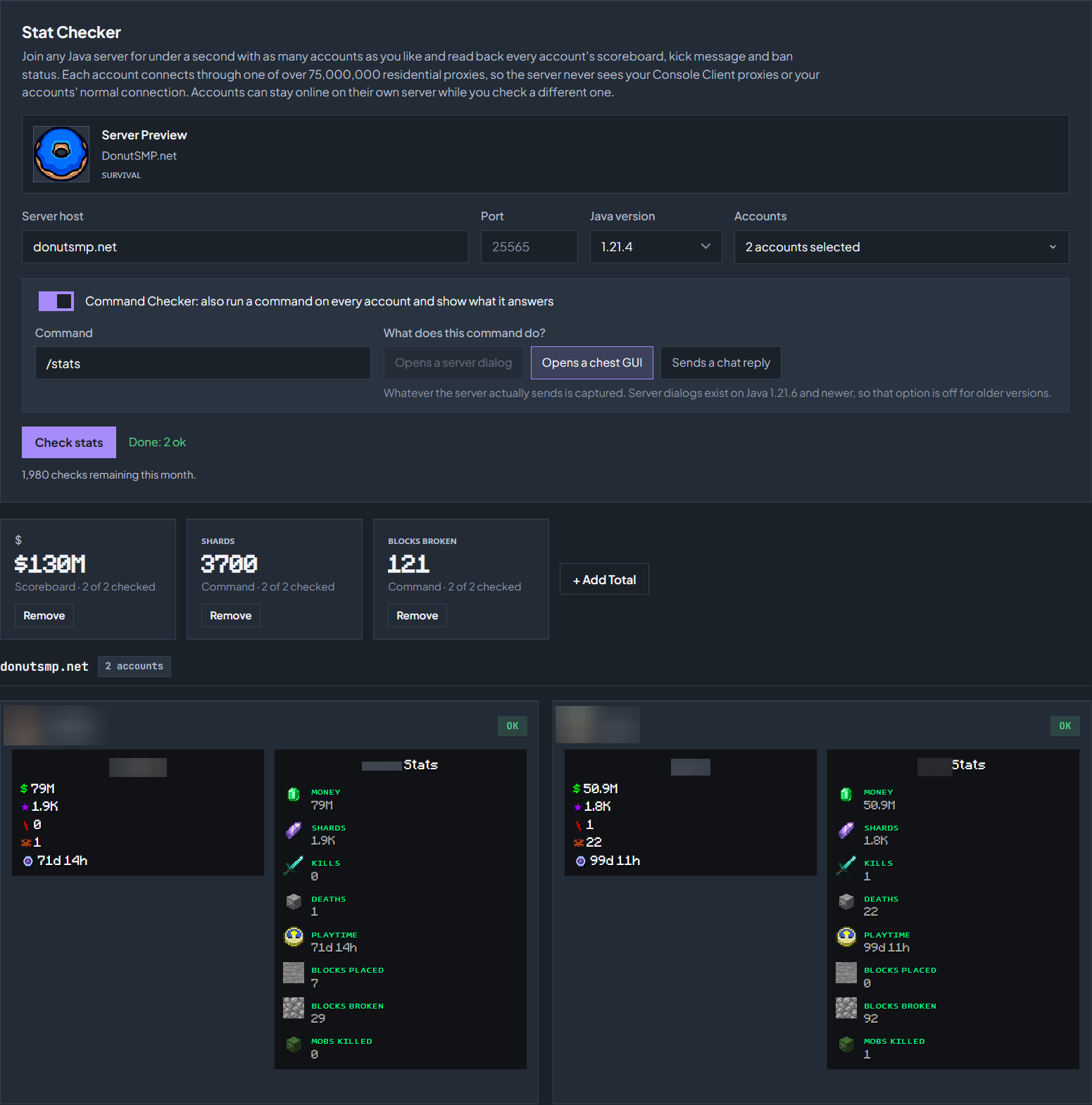
/stats chest GUI beside each scoreboard, and three totals above the cards. Click to enlarge.Read the results
| Card | What it means |
|---|---|
| OK | The account joined and the card shows the scoreboard the server sent it, with the same look as the Scoreboard tab. A server without a sidebar shows an OK card without lines; so does an account that has hidden its own scoreboard, for example with DonutSMP’s /scoreboard toggle, and Stat Checker never sends that command for you. |
| KICKED | The server refused or removed the account. The red box holds the complete kick message, colours included. |
| BANNED | A kick whose message mentions a ban, a suspension, a blacklist or the word “blocked”. The tag is solid red so it stands out in a long list. |
| FAILED | The check could not run: the server did not answer within 15 seconds (anti-bot systems and queues do this), the version could not be detected, or the account has no saved login yet. The card says which. |
The status line above the cards sums the run: how many accounts were OK, banned, kicked or failed.
Totals. If you track a scoreboard line for this server on the Scoreboard tab, for example money, the same total appears above the results, added up across every checked account. + Add Total lets you pick a line from the results to start a new total, from the scoreboard or from the command reply (a total built from a command reply lives on this tab only); it shows here and on the Scoreboard tab for that server, and Remove takes it off both. Up to six totals in all.
Your last result stays on the page, including after a refresh, until you run the checker again.
Good to know
Stat Checker is Java only. Bedrock uses UDP, which residential proxies cannot carry, so Bedrock accounts are skipped with a note on their card. An account that has never logged in on the dashboard has no saved Microsoft login for the check to use: connect it once from the Overview tab first. Stat Checker refuses to check the server an account is online on at that moment, because most servers answer a second login with an “You are already logged in” kick; that account’s card says so, and every other account in the run is checked as normal. Pick a different server or disconnect the account first.
If Console Client restarts while a check is running, for example during an update, every card that has no result yet says Console Client restarted before this check finished. Accounts that had not started yet are not counted against your monthly checks; run the check again for them.
Check the troubleshooting guide or return to all guides.