
 Proxies & Connection
Use one account on two servers
Clone a Minecraft account in Overview and give the clone its own server address, so one login plays on two servers at once.
What a clone is
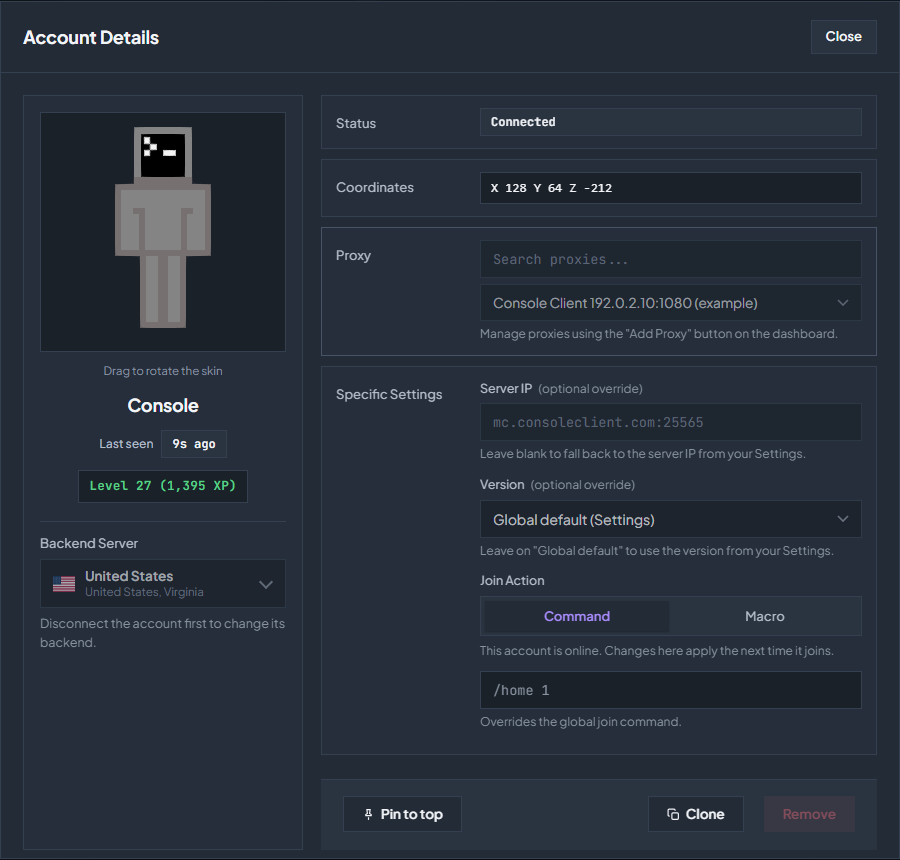
Every account in Overview normally joins the server set under Settings → Connection. To run the same Minecraft account on a second server, clone it: Console Client adds a second entry for that login, and each entry has its own Specific Settings. The original keeps following Settings, and the clone gets a Server IP override of its own. The two entries connect, disconnect and reconnect independently, and each one that is online uses one account slot.
Clone the account
Open the account’s details
In Overview, find the account and click Details.
Click Clone
At the bottom of the Account Details window, click Clone. The dashboard confirms with Cloned successfully and opens the new entry’s details straight away.
Find the clone in Overview
The clone appears as a second row with the same username, marked disconnected. Until you change it, it shows the same server as the original.
Give the clone its own server
Open the clone’s details
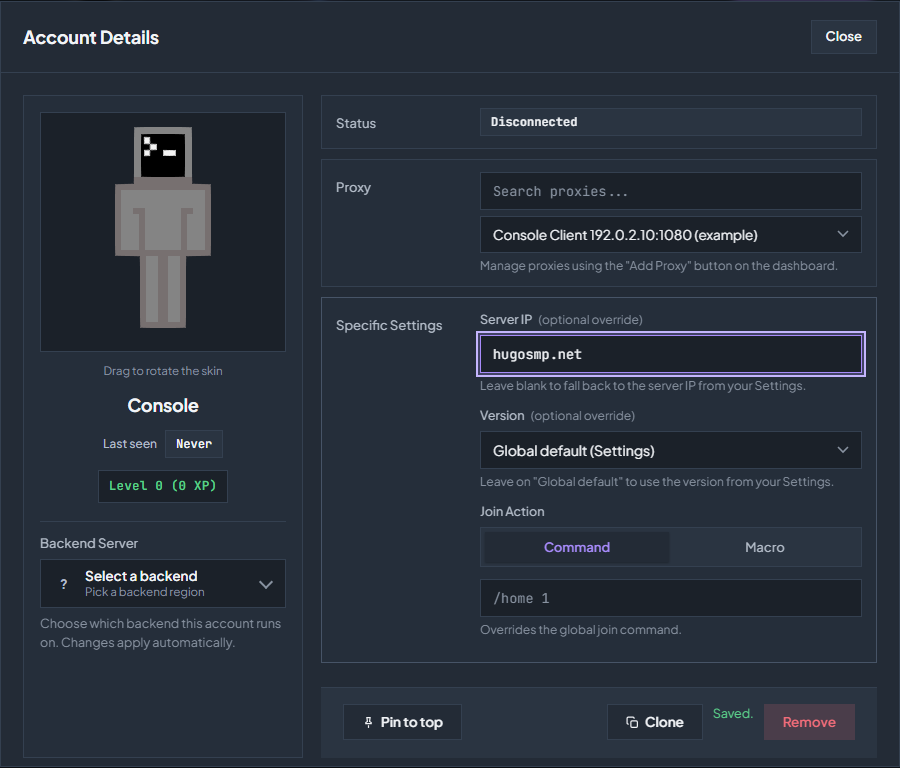
Click Details on the clone. It has to be disconnected: the server, version, proxy and backend fields are locked while an entry is online.
Set the Server IP override
Under Specific Settings, type the second server into Server IP (optional override), for example
hugosmp.net. Add the port after a colon when the server does not use the default one, such asplay.example.net:25566. The change saves on its own and Saved. appears next to the buttons.Match the version and join action
If the second server needs a different Minecraft version, pick it under Version (optional override). Join Action belongs to this entry only, so the clone can send its own command or macro when it joins hugosmp.net.
Leave the original alone
The original entry still has no override and keeps following Settings → Connection. Clearing the clone’s Server IP field sends it back to that server as well.
Connect both entries
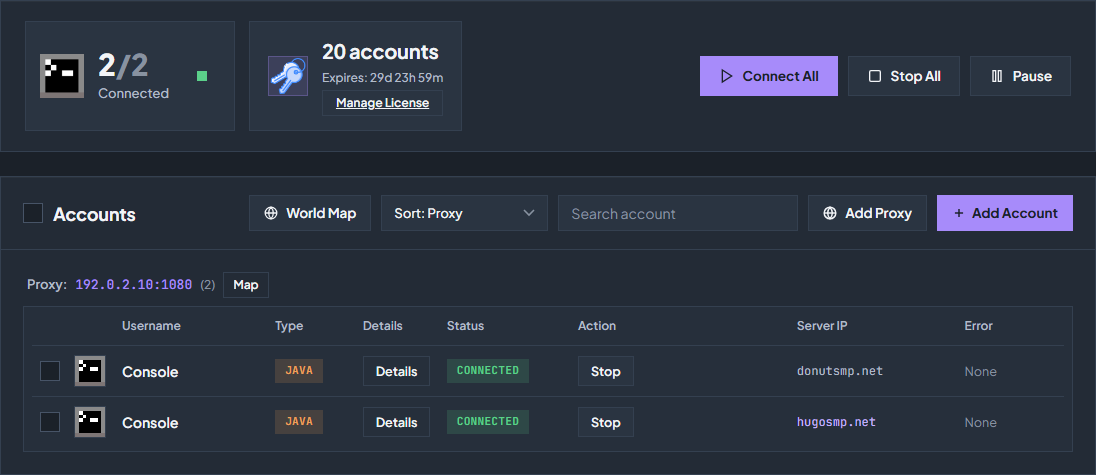
Click Connect on each row. Overview lists the original on donutsmp.net and the clone on hugosmp.net, with the override shown in a different colour in the Server IP column. Choose Sort: Server to group accounts by the server they join.
Good to know
| Question | Answer |
|---|---|
| Do I need to sign in again? | Not when the original has signed in before; the clone reuses that login. If the clone shows AUTH or asks for a code, finish the Microsoft sign-in as described in Add a Java account. |
| Does a clone use a slot? | Each entry that is online uses one account slot, so the original and its clone need two free slots to run at the same time. |
| Can I clone more than once? | Yes. Clone the original again for a third server, or clone the clone. Every new entry gets its own Specific Settings. |
| Which proxy does the clone use? | It starts with the original’s proxy. Change it in the clone’s details if the second server should be reached through a different proxy. |
| Do features see the clone? | Auto Sell, Spawner Sentry, Macros and the other account pickers treat the clone as an account of its own, so select it separately wherever you want it included. |
| How do I undo it? | Click Remove in the clone’s details. Removing the clone does not affect the original entry or its login. |
Check the troubleshooting guide or return to all guides.