 Everyday Tools
Record a macro with Macro Recording
Record what you do on an account in Point of View, trim it like a video, and replay it in any macro or turn it into steps.
What Macro Recording does
Macro Recording records everything you do on one account while you control it in Point of View: walking, sprinting, jumping, sneaking, looking around, mining, placing, using items, menus, chat and commands. You trim the recording like a video, save it, and the Play Recording step repeats it in any macro, tick for tick, the way you played it. Convert to steps turns a recording into ordinary macro steps you can edit one by one instead.
| Plan | What you get |
|---|---|
| Tier 2 (10 or more account slots) | Record, edit and play recordings. 25 saved recordings. |
| Tier 3 (20 or more account slots) | The same, with 100 saved recordings. |
| Free and Tier 1 | The Recordings tab shows what the feature does and an upgrade button. |
It works on Java and Bedrock accounts. A recording plays on the edition it was recorded on. The playback runs on the account’s backend, so the dashboard does not have to stay open while a macro plays a recording.
Record
Open the recorder
Open Macros → Recordings and click New recording. Pick the account, which has to be online, choose a countdown (none, 3 or 5 seconds) and click Open recorder.
Take control
The account’s Point of View opens full screen with the recorder bar at the top. Click the view to control the account, exactly as in Point of View. Esc releases the mouse.
Start
Press R or click Record. After the countdown the bar shows a red REC, the time and the number of actions so far.
Play
Do the job the way you want it repeated. Press M or click Marker to mark a moment you want to find again in the editor. Pause stops recording until you click Resume; what you do in between is left out.
Stop
Press R again or click Stop. The recorder closes and the editor opens on the new recording. Discard throws it away instead. Closing the view while recording also stops the recording and opens it in the editor.
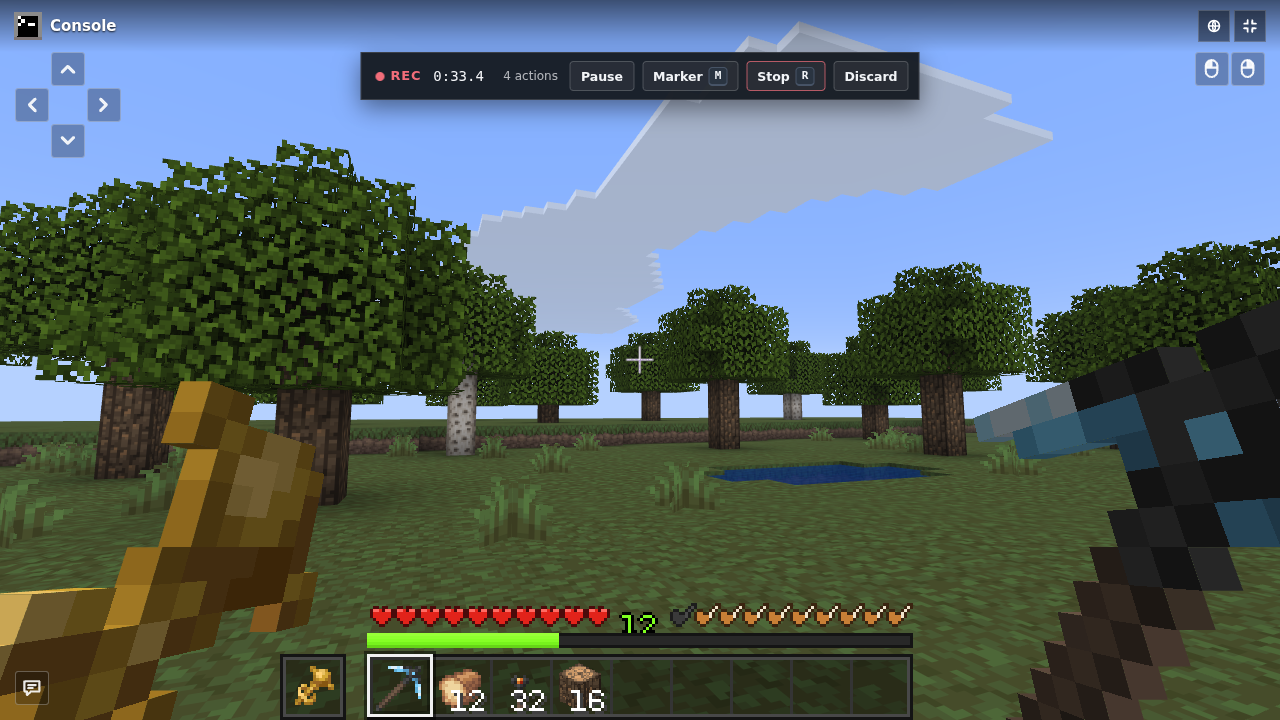
Keys in the bar changes the two hotkeys. Pick a letter or a digit the game does not use; game keys such as W, A, S, D, E, Q, F, T and the hotbar digits are refused. Your keys and the countdown are remembered in this browser.
What is recorded
| What | Details |
|---|---|
| Movement and looking | Every tick (20 per second): the movement keys, jump, sneak and sprint, both mouse buttons, where the account looks and where it is. |
| Your actions | Hotbar keys and scrolling, Q and Ctrl+Q drops, F to swap hands, the middle click, opening the inventory, clicks and drags in the inventory and in menus, closing menus, chat and commands, signs, anvils and books, villager trades, the enchanting table, beacons, stonecutters and looms, server dialogs and Bedrock forms, and the respawn button. |
| What the server did | Menus opening and closing, teleports and world changes. The playback uses them to stay in step with the server. |
Only what you do on the recorded account counts. A chat line, a command or an inventory click you send to that account while it records counts too, also from the Chat or Inventory tab, your Discord bot or the API. Macros, tasks, Mouse Control, Anti AFK, Auto Eat, Spawner Sentry, Auto Sell, the Movement tab and your other accounts are never recorded. The world itself is not recorded either: the playback expects the blocks, chests and menus to be where they were when you recorded.
Trim and edit
The editor opens after every recording and from Edit on a saved one. The line at the top shows the length, the blocks walked, the number of actions, and the edition, version and server it was recorded on.
| Part | What it does |
|---|---|
| Path | The route seen from above, green at the start and red at the end, with a dot for every action and a height strip under it. The ring is the playhead and its line points where the account looks. Click the path to move the playhead there. |
| Actions | Every action with its time. Click a line to jump there. Chat lines and commands can be edited in place, so a recorded /home farm can become /home farm2. Delete leaves one action out of the playback and Restore brings it back. |
| Timeline | Lanes for movement, the mouse buttons, actions and looking, with your markers on top. Click it to move the playhead. Drag the handles at both ends to trim the start and the end. Drag across it to select a part, then click Cut selection or press Delete. Removed parts are hatched, and the handles and selections snap to markers. |
| Preview | Plays the path on the map at real speed. Space starts and stops it. |
| Trim idle start and end | Cuts the still time before your first move and after your last one in one click. |
| Shorten pauses | Tick it to shorten every pause longer than the first number of seconds (3 by default) to the second number (1 by default). |
| Add marker | Adds a marker at the playhead. |
| Undo, Redo, Reset edits | Ctrl+Z and Ctrl+Y undo and redo. Reset edits brings back the recording exactly as it was recorded. |
| Notes | Up to 500 characters for yourself, for example where the recording starts. |
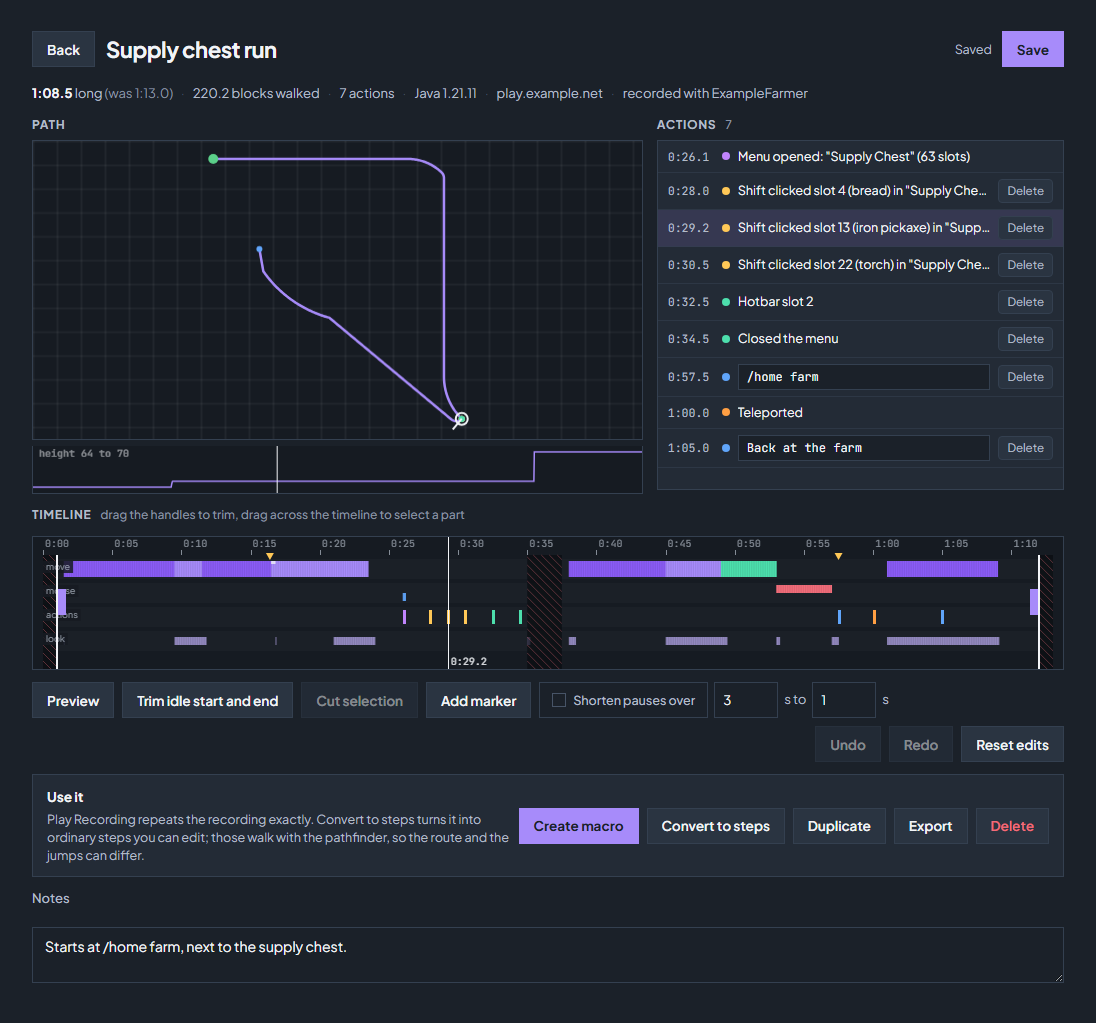
Edits never change the original recording, so Reset edits always works, even long after you saved. Where you cut a part out, the playback lines the account up again before it continues. A menu click whose menu was cut out is left out of the playback; the editor says how many.
Save and manage recordings
A new recording is marked Not saved until you click Save recording. The 3 newest unsaved recordings are kept for 7 days, so save the ones you want. Saved recordings count against your plan: the Recordings tab shows how many of your 25 or 100 you use.
| Button | What it does |
|---|---|
| Edit | Opens the editor. On an unsaved recording it reads Edit and save. |
| Create macro | Makes a new macro with one Play Recording step and opens it in Your Macros. |
| Duplicate | Saves a copy, for example to try a different trim. |
| Export | Downloads the recording as a .ccrec.json file. |
| Import | At the top of the tab: adds a recording from an exported file of up to 4 MB. |
| Delete | Deletes the recording. When a macro still uses it you are asked again, and that macro’s Play Recording step fails until you pick another recording. |
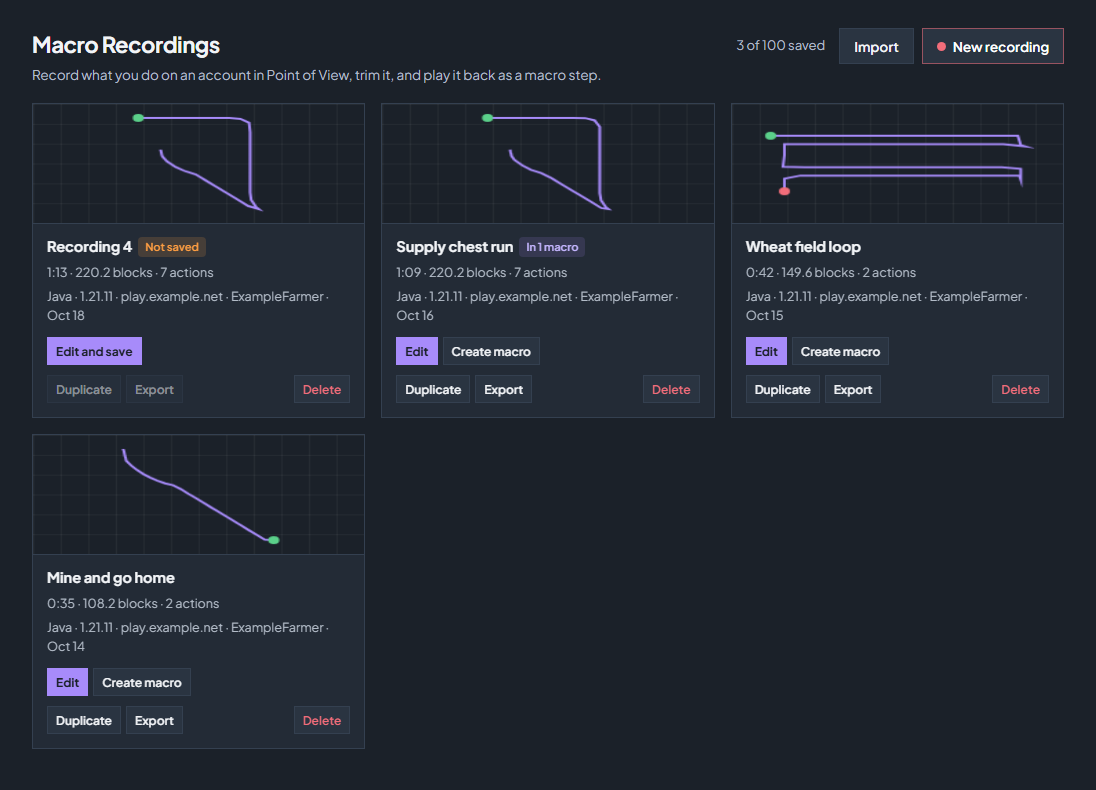
A card shows a small map of the path, the length, the blocks walked, the actions, the edition, version and server, the account it was recorded with and the date. In 1 macro tells you a macro uses it. While an account is still recording, a red row at the top offers Open recorder, Stop and edit and Discard.
The Play Recording step
Add Play Recording from Add step like any other step, or click Create macro on a recording. The step plays the recording at the speed you recorded it and ends when the recording ends.
| Option | What it does |
|---|---|
| Recording | The saved recording to play. |
| Start | Walk to where it was recorded, then play (the default): the account walks to the recorded start with the pathfinder, up to 256 blocks, lines up on the exact spot and turns to the recorded view, then plays. Play from where the account is now: the recording plays from the account’s position, so the same moves happen somewhere else. |
| Facing | Only for Play from where the account is now. The same directions as recorded keeps north as north. Turn with the account turns the whole recording by the difference between the way the account faces and the way you faced at the start. Turn with the account, to the nearest quarter turn does the same in steps of 90 degrees, for a copy of your farm built facing another way. |
| Wait for menus and teleports | On by default. Before a click in a menu, the playback waits until that menu is open, and at a recorded teleport or world change it waits until it happened and continues from where the account landed. That keeps it in step when the server is slower than when you recorded. Untick it to never wait. |
| Wait up to | How long one such wait may take, 1 to 120 seconds (15 by default). After that the step fails with the name of the menu. |
| Knocked off course after | How far, in blocks (0.5 to 16, 2 by default), the account may be from the recorded path for half a second before it counts as knocked off course, for example by a player, a mob, water or knockback. |
| When knocked off course | Walk back and continue (the default) walks back to the path and continues where it left off, up to 3 times per play. Stop the macro fails the step. Keep going ignores it. |
| Play it | How many times in a row, 1 to 1,000. With Walk to where it was recorded, every play walks back to the start first. |
| Only part | From and to, in seconds of the recording. Empty plays from the start or to the end. |
| Save the result in a variable | Optional. The variable holds plays, ticks, resyncs (walk backs), waitedMs, errMax and errMean (how far off the recorded path, in blocks) and reason. |
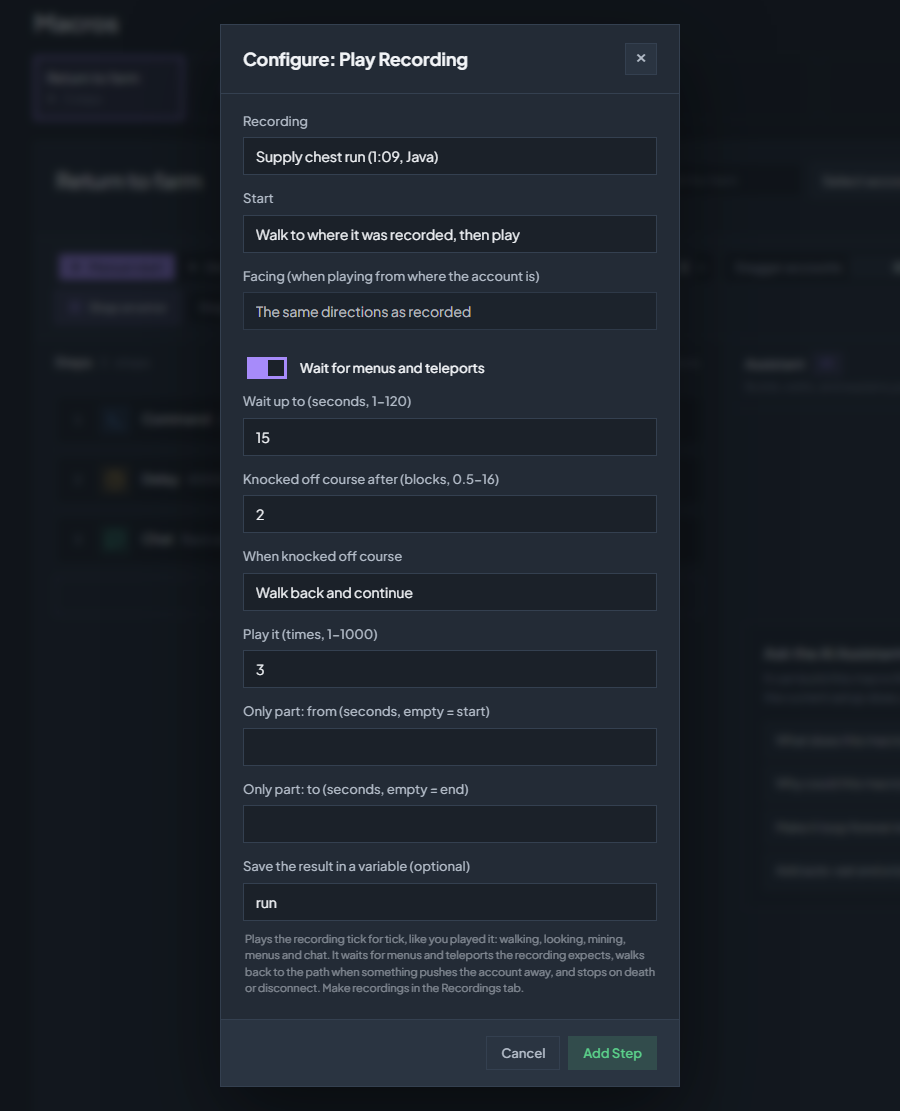
Taking control of the account in Point of View pauses the playback at once. When you let go, it walks back to the path if you moved the account and continues. While a recording plays, the account’s other automation pauses as it does for Point of View control; macro waits, loops and schedules keep counting. Chat → Console shows the [macro] lines, ending with how far the account was from the recorded path.
Convert to steps
Convert to steps in the editor makes a new macro called “name steps” out of a saved recording, built from ordinary steps you can edit:
| Recorded | Becomes |
|---|---|
| Walking | Goto Coords steps, about one at every corner of the path. |
| Where you looked before an action | Look At with the angles. |
| Hotbar keys, chat and commands | Set Hotbar, Send Chat and Type Command. |
| A menu | Wait for Window, then Click GUI Slot for each click (shift clicks stay shift clicks) and Close Window. |
| Mouse buttons | Mouse Click for a single click, Hold Mouse Button for a held button. |
| Q | Drop Held Item. |
| Pauses of a second or more | Wait / Delay. |
| Jumping, sneaking, mining while walking, drags in menus | A Play Recording step that plays only that part. |
For example, a 73 second run to a supply chest, three shift clicks, a /home and a walk back became 33 steps. Converted steps walk with the pathfinder, so the route and the jumps can differ from the recording; Play Recording repeats it exactly. Save your edits first: the button works on the saved version.
Limits and tips
| Limit | Value |
|---|---|
| Length | 15 minutes per recording. The recording stops by itself at 15 minutes. |
| Actions | 5,000 per recording. |
| Markers | 200 per recording. |
| Saved recordings | 25 on Tier 2, 100 on Tier 3, plus up to 3 unsaved ones for 7 days. |
| Size | About 12 KB per minute of walking, so a full 15 minutes is far below the 2 MB limit after edits. |
A recording stops by itself when the account disconnects, reconnects or is moved to another server by a transfer. What was recorded until then is kept and opens in the editor.
When a playback stops
The step’s error appears in Chat → Console and under Active Macros, with the time in the recording where it happened.
| Message | What to do |
|---|---|
| the “name” menu did not open within 15 s | The menu the recording clicks in did not open in time. Check that the command or click before it still opens that menu, or raise Wait up to on a slow server. “is open instead” means the server showed a different menu. |
| the teleport at 0:20.0 did not happen within 15 s, the world change at 0:20.0 did not happen within 15 s | A recorded /home, /spawn, warp or portal did not move the account. Check cooldowns, costs and permissions on the server. |
| knocked off course at 0:04.2 (3.0 blocks from the recorded path) | Shown with Stop the macro. Something pushed the account or blocked the way. Use Walk back and continue or clear the route. |
| could not get back on the recorded path (3 tries) | The account was knocked off course more than three times in one play. Record a route away from players, mobs and water. |
| the start is 300 blocks away; walk or teleport closer first, or start where the account is | More than 256 blocks from the recorded start. Add a Type Command or Goto Coords step before it, or choose Play from where the account is now. |
| the recording starts in minecraft:the_nether, the account is in minecraft:overworld | Get the account into the world the recording starts in first, for example with a command step before it. |
| could not walk to the start, could not line up with the start, the start is 3.0 blocks higher or lower than the account | The pathfinder could not reach the start, or the exact spot is blocked or on another floor. Clear the spot or start the recording somewhere easier to reach. |
| this recording was made on Java, the account plays Bedrock | Record on an account of the same edition. |
| the account died at 0:20.1, the account disconnected | The step ends. A macro that resumes after a reconnect starts the step again from the beginning, walking back to the start first. |
| the recording was deleted (not found) | Pick another recording in the step. |
| Macro Recording needs Tier 2 (10 or more account slots) | Playback needs a plan with 10 or more account slots. |
Two messages are not errors. “waiting until the account’s Point of View controls are free” means someone controls the account in Point of View or another recording is playing; the step starts when it is free. “recorded on 1.21.11, this account plays 1.21.4; movement can differ” is a warning that the versions differ. In the recorder, “The recording stopped” tells you why a recording ended by itself.
Check the troubleshooting guide or return to all guides.