
Set up a Geonix proxy
Buy a dedicated Geonix IPv4 or ISP proxy for Java accounts and add it to Console Client.
Before you buy
Geonix sells dedicated proxies that only you use. They are TCP only, so they work for Java accounts. A Bedrock account needs a SOCKS5 proxy with UDP support, such as the shared proxies in Set up Decodo shared proxies.
Buy the proxy
Open Geonix
Go to Geonix and open the proxy order page.
Pick IPv4 or ISP
IPv4 proxies are datacenter IPs, fine for servers that allow them. ISP proxies are home internet IPs, for servers that block VPNs.
Pick a country
Pick the one closest to the Minecraft server, see Choose a location. For servers in the US, Canadian proxies are usually more stable.
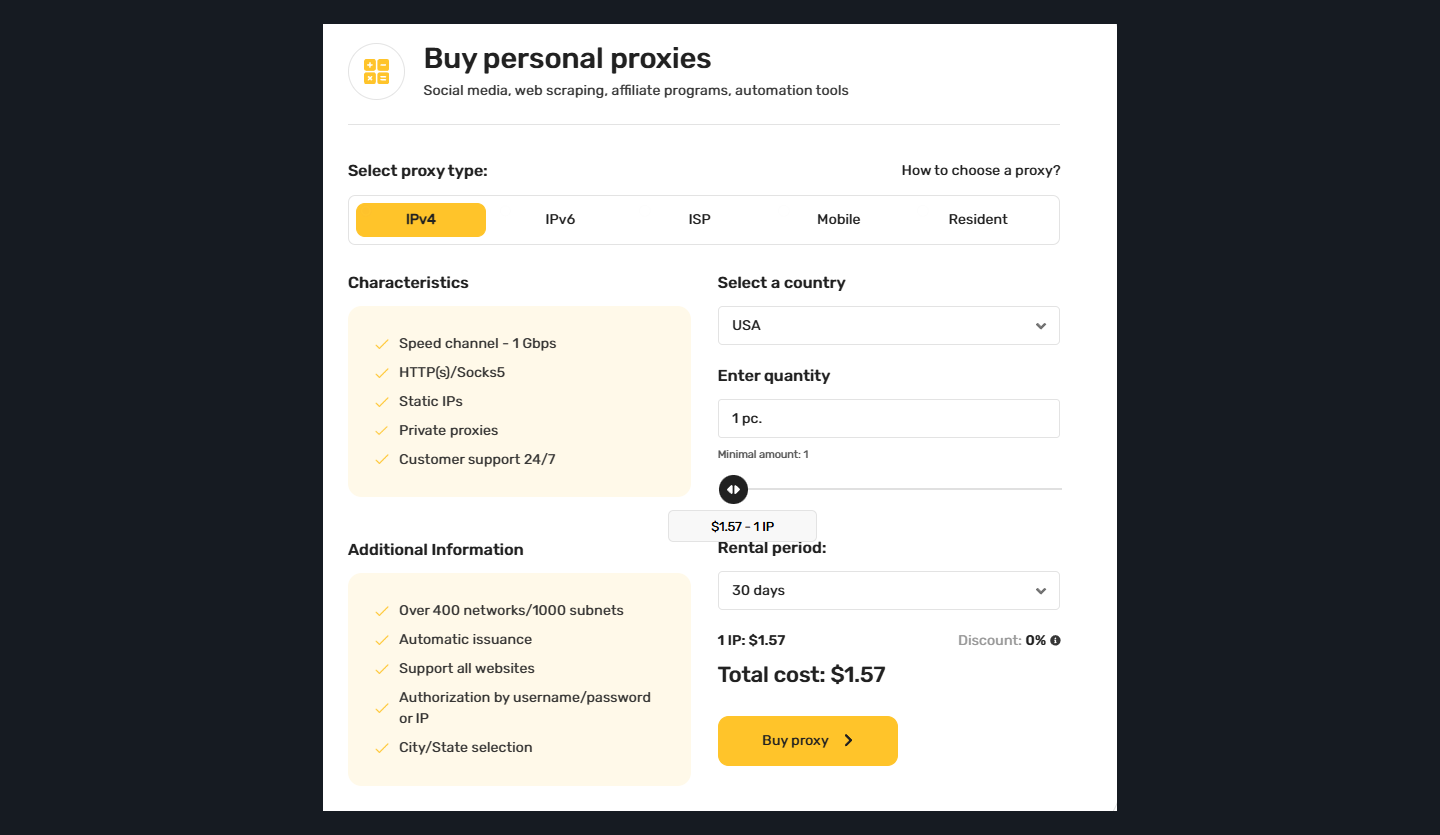
The Geonix order page with IPv4 and a country selected. Click to enlarge. Fill in the order
Set Purpose of use to Online games, Specify service to Minecraft and Authorization method to user+pass. How many proxies you need depends on your accounts and the server’s rules; some servers allow only one account per proxy.
Use the discount code
Enter
CONSOLE25for 25% off as the promo code, then pay.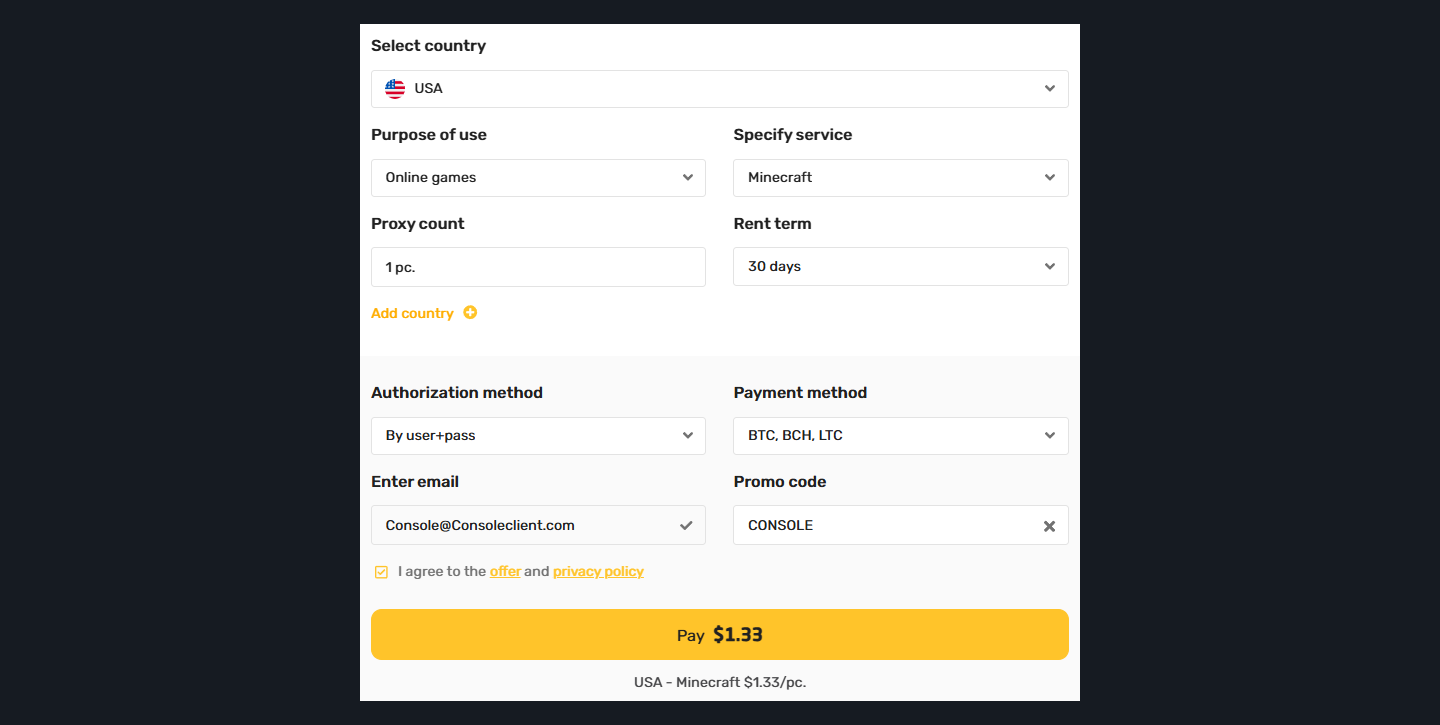
The Geonix order form set up for Minecraft, with the promo code filled in. Click to enlarge.
Add it to Console Client
Copy the proxy details
In the Geonix dashboard, copy the IP, port, username and password. Use port
59101, the SOCKS5 port, not the HTTPS one.Add it under Your own proxies
Open Proxies, keep the type on SOCKS5, enter the IP and port and the username and password (a dedicated proxy needs them), then click Add Proxy.
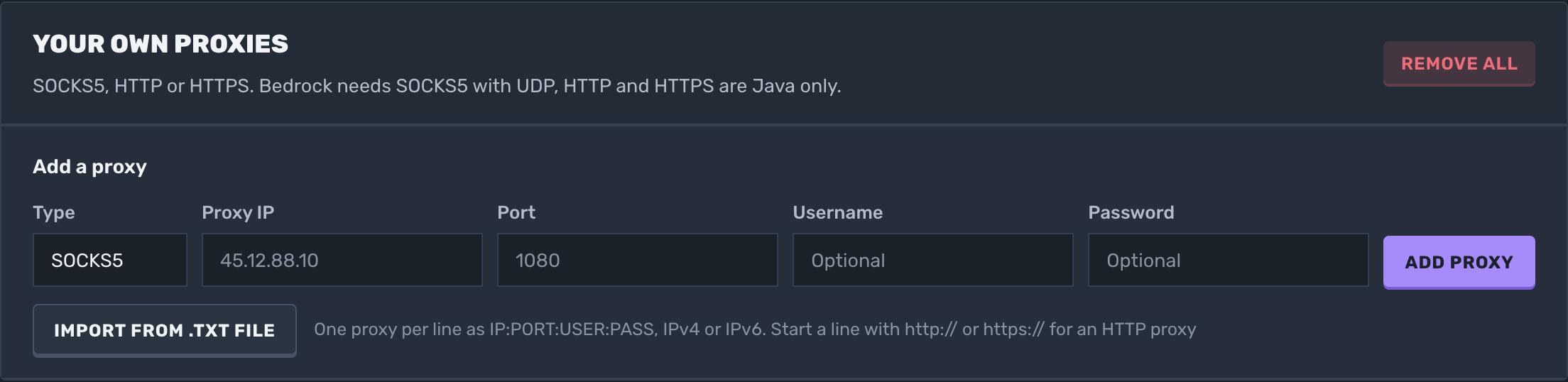
Your own proxies on the Proxies page, with the type, IP, port, username and password fields. Click to enlarge. Choose it on your account
Select the proxy when you add an account, or disconnect an account and change its proxy. See Add your own proxies.
Choose a location
Every connection makes three hops, and the closer they are to each other, the lower your ping:
Console Client node → Proxy → Minecraft serverFor a server in Europe, run the account on a node in Europe and use a proxy in Europe. The node locations are on the status page.
Check the troubleshooting guide or return to all guides.